
Google Tag Manager 101
What Google Tag Manager Actually Does (And Why It Matters)

Google Tag Manager is a free tool that lets you add, update, and manage tracking codes on your website — without touching your site's code every time.
Quick answer:
Question | Answer |
What is it? | A tag management system from Google |
What does it do? | Manages tracking scripts from one dashboard |
Who is it for? | Marketers, business owners, developers |
Is it free? | Yes — a free version exists |
Does it replace Google Analytics? | No — it works alongside it |
Think of it like a control panel. Instead of asking a developer to manually embed tracking scripts every time you want to run a new ad campaign or measure a new event, you do it all from one place — no code edits required.
Over 2 million websites use it. It powers tracking for Google Ads, Meta Pixel, Pinterest, LinkedIn, and dozens of other platforms. Airbnb used it to improve vendor data collection to 90%. Jobs2Careers doubled their conversions after adopting it.
It's one of the most practical tools a small business can add to their website — and most people are either not using it or not using it well.
I'm Carlos Cortez, senior consultant at S9 Consulting, and over two decades of scaling e-commerce operations and digital systems, Google Tag Manager has been a cornerstone tool in nearly every client engagement I've led. In this guide, I'll break it all down so you can start using it with confidence.

What is Google Tag Manager and How Does It Work?
To understand Google Tag Manager (GTM), it helps to visualize how websites traditionally handle tracking. Historically, if you wanted to track Facebook Ads conversions, monitor user behavior with Google Analytics, and run Google Ads remarketing, you had to paste separate code snippets directly into your website's HTML.
Every new tool meant editing the code. Every change to what you wanted to track meant another code deployment. This process was slow, prone to breaking the website layout, and heavily reliant on web developers.
GTM changes this dynamic entirely. Instead of placing dozens of individual tracking scripts on your website, you install a single, master tracking code called the GTM container code. Once this container is live, you manage all your other tracking scripts—known as "tags"—through a web-based interface.
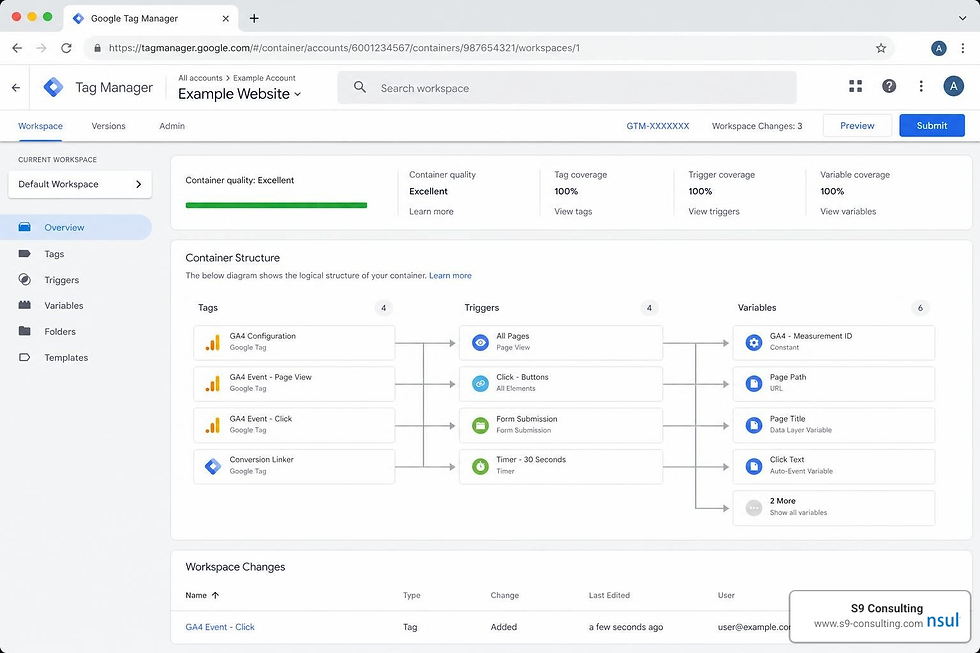
When a user visits your site, the GTM container code loads. Based on the rules you have configured in the GTM dashboard, GTM dynamically decides which tags need to fire and when. This centralizes your marketing technology stack, speeds up website load times, and gives marketing teams the power to deploy tags in minutes rather than weeks. For a comprehensive overview of how this fits into your broader digital strategy, check out the About Google Tag Manager documentation.
Google Tag Manager vs Google Analytics: Key Differences
One of the most common points of confusion for website owners is the difference between Google Tag Manager and Google Analytics (GA). They are often spoken of in the same breath, but they perform completely different roles.
Simply put: Google Tag Manager is the mail carrier; Google Analytics is the analysis office.
Google Tag Manager does not gather, store, or analyze data. It is a delivery mechanism. It packages up information about what happened on your site (e.g., "someone clicked the checkout button") and sends it to other tools.
Google Analytics is the destination for that data. It receives the information sent by GTM, processes it, categorizes it, and displays it in reports, charts, and dashboards so you can analyze user behavior.
Feature | Google Tag Manager (GTM) | Google Analytics (GA4) |
Primary Purpose | To manage and deploy tracking codes (tags) without editing source code. | To collect, analyze, and report on website traffic and user behavior. |
Data Storage | None. It only passes data to other platforms. | Stores all historical visitor and event data. |
Interface Focus | Creating tags, triggers, variables, and firing rules. | Analyzing reports, user demographics, conversion funnels, and retention. |
Typical Users | Digital marketers, tracking specialists, developers. | Business owners, marketing analysts, SEO specialists, product managers. |
Scope of Tools | Can manage Google tags, Meta Pixels, Hotjar, Pinterest, and custom HTML. | Focused entirely on Google's analytical ecosystem. |
By using them together, you unlock maximum tracking power. GTM gives you the flexibility to track highly specific user interactions, while GA4 gives you the analytical depth to make sense of those actions. For an in-depth breakdown of how to coordinate these tools, read our Google Tag Manager Complete Guide 2026.
Understanding Tags, Triggers, and Variables
The inner workings of GTM rely on three core pillars: Tags, Triggers, and Variables. Understanding how these three elements interact is key to mastering tag management.
Tags: These are the actual snippets of code or tracking pixels that run on your website. Examples include your Google Analytics 4 configuration tag, a Meta Pixel pageview tag, or a Google Ads conversion tracking script. GTM provides dozens of built-in templates for popular services, as well as custom HTML options for custom scripts.
Triggers: Triggers dictate when and where your tags fire. Every tag must have at least one trigger associated with it. A trigger listens for specific events on your website—such as a page load, a link click, a form submission, or a custom event—and tells the tag to execute when those conditions are met.
Variables: Variables are placeholders for values that change. They can represent a page URL, a click ID, a transaction value, or a product name. GTM uses variables in two ways: to define the conditions of a trigger (e.g., "fire this tag only when the Page URL variable contains '/thank-you'") or to capture information to pass along with a tag (e.g., "send the Transaction Total variable value to Google Ads").
This entire ecosystem relies on the Data Layer, a virtual storage space on your website where GTM temporarily stores structured data, making it incredibly easy for tags, triggers, and variables to access. To explore how Google organizes these structures across its entire suite, visit the Tag Platform resource.
eCommerce Benefits of Tag Management
For eCommerce brands, precision tracking is the difference between scaling profitably and wasting thousands of dollars on unoptimized ad spend. GTM is particularly transformative for online stores for several reasons:
Improved Site Speed: eCommerce sites are notorious for code bloat caused by installing multiple Shopify apps, marketing pixels, and customer support widgets. GTM helps solve this by loading tags asynchronously. This means your website content loads first, and the tracking scripts load in the background, preventing tracking codes from slowing down the user experience.
Agility and Control: Marketing teams can launch new ad campaigns on Pinterest, TikTok, or Google Ads and set up conversion tracking instantly. They don't have to wait for a developer to modify the store's liquid files or theme templates.
Accurate Conversion Data: GTM standardizes how data is passed from your checkout to your marketing platforms, ensuring that your Facebook Ads, Google Ads, and GA4 accounts all report matching revenue numbers.
Proven Business Impact: Major global brands rely on GTM to solve complex data challenges. For example, Airbnb successfully streamlined its vendor data collection, improving data accuracy to 90% while simultaneously boosting website performance. Similarly, the job search platform Jobs2Careers used GTM to automate and refine its tracking, doubling its conversion rates and dramatically increasing workflow efficiency.
To learn more about how tag management solutions can streamline your business operations, explore the official Website Tag Management Tools & Solutions page.
Setting Up and Installing GTM on Your Website
Setting up GTM is a straightforward process, but it requires careful execution to ensure your tracking works reliably from day one.

Step-by-Step Installation Guide
To begin, you need to create a GTM account and container.
Navigate to the Google Tag Manager website and sign in with your Google account.
Click Create Account. Enter an Account Name (typically your company name) and select your country.
Set up your Container. A container represents your website. Enter your website's URL as the container name and select Web as the target platform. Click Create and accept the terms of service.
GTM will immediately display two code snippets. These are your installation scripts:
The Header Script: Paste this snippet as high as possible in the <head> tag of your website's master template. This script initializes GTM and starts loading tags as early as possible.
The Body Script: Paste this snippet immediately after the opening <body> tag. This serves as a fallback to track users who have JavaScript disabled in their browsers.
Depending on your website platform, installing these codes can vary:
WordPress: You can add these snippets directly to your theme's header.php file, or use a dedicated plugin to insert them safely. For a detailed walkthrough, view our guide on how to Add Google Tag Manager to a WordPress Site.
Shopify: Shopify merchants can integrate GTM by editing their theme.liquid file or utilizing custom app configurations designed to pass rich eCommerce data. Learn how to set this up correctly by visiting our tutorial on how to Add Google Tag Manager to a Shopify Store.
Squarespace: Squarespace allows code injection features to place GTM snippets across your entire site. For step-by-step instructions, read our resource on how to Add Google Tag Manager to a Squarespace Website.
Tracking Key eCommerce Events
Once GTM is installed, you can start tracking the key actions that drive your business. In eCommerce, standard pageview tracking is not enough. You need to know when users are actively engaging with your products.
Add-to-Cart: By creating a click trigger that targets your "Add to Cart" button class or ID, you can fire tags that measure shopping intent.
Form Submissions: Tracking newsletter sign-ups or contact forms is simple with GTM’s built-in Form Submission trigger, which validates that a form was successfully sent before firing the tag.
Purchases: Tracking successful purchases is the holy grail of eCommerce tracking. This involves reading order details (order ID, total revenue, tax, shipping, and item details) from the website's Data Layer and passing them to your analytics and advertising destinations.
Setting up purchase tracking manually can be complex, but GTM simplifies the process. To ensure your purchase data is being passed accurately to Google Ads, review our guide on Ads Conversion Tracking to a Site Using GTM.
Integrations with Google and Third-Party Platforms
GTM is designed to play nicely with almost every major advertising and marketing technology platform on the web.
Instead of writing custom JavaScript for each platform's tracking pixel, you can leverage GTM's native templates or community-contributed templates. This makes deploying diverse pixels incredibly fast and secure.
Google Ads: Consolidate your conversion tracking and remarketing tags with ease. For a quick setup, follow our guide on Adding Google Ads Global Site Tag to a Site Using GTM.
Pinterest: Capture valuable shopping data from users coming from Pinterest boards. Discover how to deploy this pixel using our step-by-step tutorial on Setting Up Pinterest Conversion Tracking Using GTM.
Twitter/X: Monitor the performance of your social ad campaigns by following our guide on Setting Up Twitter Conversion Tracking Using GTM.
Advanced Tracking: Server-Side Tagging and Consent Mode
As the digital landscape evolves, traditional client-side tracking (where tags fire directly in the user's browser) faces growing challenges. Ad blockers, browser privacy features like Apple's ITP, and regulatory changes make it harder to collect clean, reliable data. This is where advanced GTM strategies come into play.
The Advantages of Server-Side Tagging
Server-side tagging is a major paradigm shift in web analytics. Instead of sending data directly from the user's browser to third-party ad networks (like Facebook or Google Ads), the browser sends data to a secure cloud server that you control. This server then processes, filters, and routes the data to its final destinations.
This approach offers several massive advantages:
Significantly Better Site Performance: Because the heavy lifting of processing and sending tag data is moved from the user’s device to your cloud server, your website loads faster, leading to higher conversion rates and better SEO rankings.
Enhanced Data Security and Control: You act as a gatekeeper. You can strip out sensitive user information (like IP addresses or personal emails) before sending the data to third-party vendors.
Bypassing Browser Restrictions: By serving your tracking scripts from your own custom subdomain (e.g., tracking.yourdomain.com), you establish first-party cookies that are not automatically blocked by Safari or Firefox, preserving your attribution windows.
Setting up server-side tagging requires provisioning a cloud environment, typically running on Google Cloud Platform (GCP) Cloud Run. To understand the architecture and get started with this advanced setup, refer to the official Server-side tagging developer documentation.
Consent Management and Privacy Compliance
With strict regulations like GDPR in Europe and CCPA/CPRA in California, respecting user privacy is no longer optional—it is a legal necessity. GTM supports this through its native Consent Mode integration.
Consent Mode allows GTM to dynamically adjust how your tags behave based on the user's consent choices (usually indicated via a cookie consent banner). For example, if a user rejects marketing cookies but accepts analytics cookies, Consent Mode will instruct your Google Ads tags to refrain from writing cookies to the user's device while still allowing Google Analytics to collect anonymous, modeled data.
GTM features a dedicated Consent Initialization trigger, which is designed to fire consent management tags before any other tags are allowed to execute. This ensures that user preferences are fully respected from the very first millisecond they land on your site. For detailed instructions on configuring these privacy settings, review the Tag Manager consent mode support guide.
Best Practices for Organizing and Testing in Google Tag Manager
When managing a growing GTM container, organization and testing are critical to prevent errors. Here are the core best practices we implement at S9 Consulting:
Use Consistent Naming Conventions: Organize your tags, triggers, and variables with clear, predictable names. For example, use [Platform] - [Tag Type] - [Action] (e.g., GA4 - Event - Add to Cart or Meta Pixel - Pageview - All Pages).
Leverage Workspaces: GTM allows multiple team members to work in separate workspaces simultaneously without overwriting each other's changes.
Always Test in Debug Mode: Never publish changes directly to live traffic. GTM's built-in Preview and Debug mode (powered by Tag Assistant) opens a separate browser window where you can interact with your site and see exactly which tags fire, what data is in the Data Layer, and what values are being passed.
If you are a Squarespace user, debugging can sometimes present platform-specific quirks. To navigate these smoothly, consult our tailored guides on the Squarespace GTM Debug Mode and the Squarespace GTM Preview Mode Guide.
Frequently Asked Questions about GTM
What is a GTM container?
A GTM container is a single JavaScript file that holds all the tags, triggers, variables, and configurations you set up in your GTM account. When you install GTM on your site, you are placing this container code. It acts as a wrapper, dynamically loading and executing your tracking scripts without requiring you to manually edit your website's source files.
Is Google Tag Manager free to use?
Yes, the standard version of Google Tag Manager is completely free and highly robust, making it perfect for small to mid-sized businesses and scaling eCommerce brands. Google also offers a paid, enterprise-grade version called Tag Manager 360, which is designed for massive enterprises requiring advanced SLA agreements, unlimited workspaces, and dedicated support.
How do I debug tags in GTM?
You debug tags by clicking the Preview button in the top right corner of your GTM dashboard. This launches Google Tag Assistant, which connects to your website in a secure debugging session. As you browse your site, Tag Assistant records every user action and shows you exactly which tags fired, which ones failed to fire, and why.
Conclusion
Google Tag Manager is one of the most powerful, liberating tools in the modern digital landscape. By taking tracking scripts out of your website's hard code and putting them into a visual, centralized dashboard, GTM saves you time, protects your site speed, and gives your marketing team the agility they need to scale.
However, while GTM makes managing tags easier, setting up complex funnels, configuring server-side tracking, and ensuring full privacy compliance still requires technical expertise.
At S9 Consulting, we specialize in helping businesses in Boston, MA, Jacksonville, FL, and beyond integrate their systems, automate processes, and build highly accurate tracking foundations. Whether you need a simple pixel setup or a robust, server-side data architecture, we are here to help you turn data into a competitive advantage.
Ready to get your site tracking correctly? Let us handle the heavy lifting. Explore our specialized service to Setup Most Tools on Your Website Using GTM and start making data-driven decisions today.