

Look Ma, No Hands: A Guide to Google Tag Manager Automation
Stop Configuring Tags by Hand: What Google Tag Manager Automation Actually Does

Google Tag Manager automation lets you programmatically create, manage, and deploy tags, triggers, and variables — without touching the GTM interface manually.
Here's what that means in practice:
Use the GTM REST API to create tags and triggers through code, not clicks
Design a smart dataLayer structure so one tag handles dozens of components
Automate workspaces and versioning to manage deployments at scale
Use server-side tagging to move tag logic off your website and into the cloud
Leverage AI tools to generate GTM container JSON from plain-English descriptions
Most businesses start with Google Tag Manager because it beats editing code every time marketing needs a new pixel. And it works — up to a point.
Then the tags multiply. You've got separate tags for every button, every page, every campaign. Someone has to manually set up each one. Someone has to QA it. Someone has to publish it.
That's where the bottleneck lives.
Mona Gandhi, a Software Engineer at Airbnb, described the improvement GTM brought to their team: "It's a matter of an hour or so from receiving a tag to testing to QA to deployment." Airbnb also improved vendor data collection to 90% using Tag Manager. That's the kind of efficiency that only comes when your tag management process is tight — and ideally, automated.
I'm Carlos Cortez, co-founder of S9 Consulting, and I've spent years building and systematizing digital infrastructure for businesses — including designing scalable Google Tag Manager automation workflows that eliminate manual bottlenecks and keep analytics reliable as companies grow. In the sections ahead, I'll walk you through exactly how to get there.
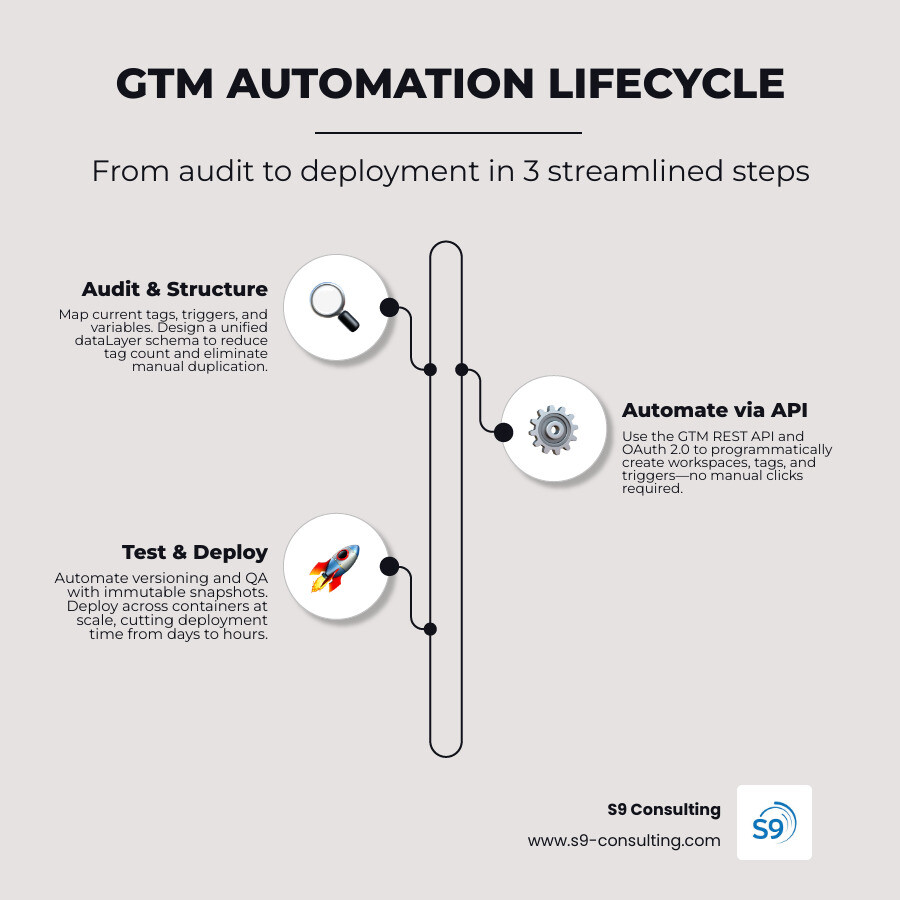
Why Enterprise Teams Need Google Tag Manager Automation
At first glance, clicking around the Google Tag Manager interface seems easy enough. But as your digital footprint expands, manual container configuration turns into a massive operational burden. If your marketing team launches a dozen landing pages a week, or your product team rolls out new interactive web components daily, relying on manual tag creation is a recipe for disaster.
Manual tag deployment introduces a high risk of human error. A single misspelled variable name, an improperly configured trigger, or a misplaced Google Analytics measurement ID can silently break your conversion tracking. You might not notice the issue until weeks later when your marketing reports show a sudden, inexplicable drop in performance.
Furthermore, manual workflows slow down your deployment speed. Every time a new tracking pixel is requested, a developer or analyst must log into the GTM UI, create a workspace, manually configure the tags and triggers, preview the changes, and wait for QA approval. This slow cycle delays campaigns and hurts workflow efficiency.
By transitioning to automation, you turn tag management from a bottleneck into a seamless, repeatable process. Enterprise teams can instantly provision standardized tracking setups for new client sites, ensure perfect data consistency, and free up valuable engineering hours. If you are new to the platform or need a refresher on its core architecture, reading our Google Tag Manager Complete Guide 2026 will provide the foundational knowledge needed before diving into advanced automated workflows.
Programmatic Container Management via the GTM REST API
For teams managing dozens or hundreds of containers, the Google Tag Manager REST API is a game-changer. Instead of clicking through the web interface, you can write scripts to programmatically manage accounts, containers, workspaces, tags, triggers, variables, and user permissions.
The GTM API v2 is structured around a clear RESTful hierarchy. Under an Account, you find Containers. Inside each Container, you can manage Workspaces, which act as isolated sandboxes for your changes. Within these workspaces, you can programmatically create, modify, or delete tags, triggers, and variables.
Using the API allows agencies and enterprise development teams to automate standard container setups. For instance, when onboarding a new web property, a script can automatically fetch the target container, spin up a new workspace, generate standard GA4 configuration tags, set up basic outbound link triggers, and organize everything into clean folders.
To explore the official capabilities, endpoints, and language-specific client libraries, you can consult the Google Tag Manager API - Developer's Guide | Tag Platform | Google for Developers . Programmatic management allows your development pipeline to treat tag configurations as code, making your analytics setup version-controlled, auditable, and incredibly fast to deploy.
Setting Up Authentication and Authorization for the API
To start communicating with the GTM REST API, you must establish a secure, authorized connection. Google relies on the industry-standard OAuth 2.0 protocol to authorize API requests. This ensures that your automation scripts only access the accounts and containers they are explicitly permitted to manage.
To set up authentication, follow these essential steps:
Create a project in the Google Cloud Console and enable the Google Tag Manager API.
Configure your OAuth consent screen, specifying the scopes your application requires (such as tagmanager.readonly for auditing or tagmanager.edit.containers for creating assets).
Create OAuth 2.0 Client ID credentials for an "Installed Application" or "Web Application" depending on your scripting environment.
Download the client credentials JSON file and rename it to client_secrets.json in your local project directory.
Use a Google API client library in your preferred language (like Python or Node.js) to initialize the authentication flow, which will prompt you to authorize the application via your browser and generate a refresh token.
Because destructive API operations execute instantly without confirmation prompts or undo buttons, we highly recommend utilizing a dedicated GTM test account while developing and testing your scripts. This prevents accidental deletions or misconfigurations on active, live production accounts. For a deeper look at the foundational authentication setup and legacy code structures, review the Google Tag Manager API - Developer's Guide .
Best Practices for Managing Workspaces and Versioning
One of the most powerful features of GTM API v2 is its native support for Workspaces. Workspaces allow multiple team members or automated scripts to work on the container concurrently without overwriting each other's changes. When automating GTM, you should never attempt to push changes directly to a live container environment. Instead, always follow a structured workspace and versioning workflow.
First, programmatically create a new, dedicated workspace for your automated changes. This keeps your API-generated configurations isolated from manual edits occurring in the default workspace. Once your script successfully creates the tags, triggers, and variables, you can programmatically trigger a workspace sync to pull in any concurrent updates made by human editors.
If conflict resolution is required during a sync, the GTM API provides specific endpoints to resolve merge conflicts programmatically. Once the workspace is clean and validated, the final step is to create a container version. In GTM, versions act as immutable snapshots of your configuration. Publishing this version pushes the changes live to your users.
Using this structured approach ensures a clean deployment history. To study the complete REST resource map, including endpoints for workspaces, version headers, and user permissions, visit the Tag Manager API | Tag Platform | Google for Developers .
Architectural Automation: Reducing Tags with a Consolidated dataLayer
Programmatic API scripting is not the only way to achieve google tag manager automation. In fact, some of the most elegant automation is architectural. Instead of writing complex scripts to generate hundreds of individual tags and triggers for every button or form on your site, you can design a smart, consolidated dataLayer schema.
The dataLayer is a JavaScript array used by GTM to securely collect and pass structured data from your website's front-end to your tracking tags. By standardizing your front-end event data, you can use a single, dynamic GTM tag and trigger to handle an infinite number of user interactions.
Instead of creating separate GTM tags for "Header Click," "Footer Click," and "Sidebar Click," you can implement a standardized dataLayer push on your website. When a user clicks an element, your front-end pushes a generic event containing dynamic parameters:
event: "ui_interaction"
element_category: "button"
element_location: "header"
elementaction: "ctaclick"
element_label: "Get Started"
In GTM, you only need to create one trigger that fires on the custom event "ui_interaction". You then set up one tag (such as a GA4 Event tag) that references GTM variables mapping to those dynamic dataLayer parameters. This single-tag architecture automatically handles every single button click across your entire site without ever requiring you to open GTM to add a new tag. To see how this architectural approach simplifies your overall marketing stack integration, take a look at how to Setup Most Tools on Your Website Using GTM.
Streamlining Component Tracking with Google Tag Manager Automation
To successfully implement architectural automation, your development team must establish a rigid event schema. When everyone agrees on standard naming conventions for dataLayer pushes, frontend component tracking becomes incredibly streamlined.
For example, if you are tracking various form submissions or dynamic UI components like modals, accordions, and alerts, you can map them all to a unified schema. A single GTM tag can capture these dynamic triggers and pass the data directly to Google Analytics 4. This cuts down on container clutter, improves container loading speeds, and makes debugging infinitely simpler.
If you are looking to implement this streamlined model to track user interactions and send clean data to your analytics platform, our step-by-step guide on Adding Google Analytics 4 to a Site Using GTM offers practical instructions to get your dynamic event tags up and running efficiently.
Automating Multi-Page and Multi-Component Deployments
When scaling analytics across large web applications or multi-site networks, manual configuration becomes impossible to maintain. Automating these deployments requires a combination of front-end DOM standardization, structured dataLayer implementation, and automated testing tools.
The table below illustrates the stark contrast between traditional manual tag deployment and automated multi-component deployment:
Feature | Manual Deployment | Automated Deployment |
Setup Time | Hours to days of manual configuration | Minutes via automated scripts and templates |
Consistency | High risk of typos and mismatched naming | Perfect alignment with predefined schemas |
Scalability | Becomes slower and more complex with scale | Effortlessly scales to hundreds of sites/pages |
Testing | Manual browser clicks and preview mode QA | Automated headless browser validation (Playwright) |
To make automated deployments work, you must first standardize your DOM elements. This means establishing strict naming conventions for element IDs and CSS classes. For instance, you might use the format "categorylocationdescriptor" for your element IDs (e.g., "ctaherosignup").
Additionally, you can apply non-intrusive tracking-specific CSS classes to your HTML elements, such as "js-track js-click js-hero". Your automated GTM triggers can then listen for clicks on any element containing the "js-track" class, automatically extracting the category and action from the other classes.
To validate that your automated tags and dataLayer events are firing perfectly across all pages without manual testing, you can implement automated headless browser testing. Using testing frameworks like Playwright, you can write scripts that navigate your site, click buttons, submit forms, and programmatically verify that the correct dataLayer pushes occur.
For developers looking to integrate these automation skills directly into their CLI workflows, the open-source toolkit found at sgschincholkar/google-tag-manager-automation provides excellent automation skills designed to streamline the entire GTM lifecycle — from initial codebase auditing to automated validation testing.
Overcoming Pitfalls in Google Tag Manager Automation
While automating GTM offers incredible speed and efficiency, it also introduces unique technical challenges that developers must navigate carefully. The most common pitfalls include API rate limits, resource fingerprint conflicts, and silent dataLayer failures.
First, the Google Tag Manager API enforces strict rate limits. The API is capped at 10,000 requests per day and has a tight rate limit of 0.25 queries per second (QPS), which equates to one request every four seconds. If your automation script attempts to rapidly create dozens of tags in a loop, Google will immediately block your requests with 429 rate limit errors. To avoid this, your scripts must implement a rate-limiting queue that pauses between API calls.
Second, the GTM API utilizes "fingerprints" to prevent concurrent modification conflicts. Every time you retrieve a tag, trigger, or variable, the API returns a unique fingerprint string representing the current state of that resource. When you send an update request, you must include this fingerprint. If another user or script modified the resource in the meantime, the fingerprints will not match, and the API will reject the update. Your automation code must be built to handle these conflicts gracefully by fetching the latest state before pushing updates.
For teams looking to integrate AI agents or large language models into their GTM workflows, structured references can help translate natural language commands into valid API calls. The resource repository at NikolaOroz/gtm-api-for-llms provides an optimized, machine-readable reference of the GTM API designed specifically for AI consumption, helping developers build smart AI tools that respect validation rules and rate limits.
Furthermore, if you want to bypass manual GTM container creation altogether using natural language or spreadsheet imports, tools like AI-Powered Google Tag Manager Automation — AI Tag Manager can instantly generate production-ready GTM container JSON files, including consent mode configurations, based on simple english descriptions.
How Server-Side Tagging Fits into Modern Automation Strategies
As privacy regulations tighten and web browsers restrict third-party cookies, client-side tracking is becoming less reliable. This has led to the rapid adoption of server-side tagging as a core component of modern enterprise tracking.
In a traditional client-side setup, Google Tag Manager runs directly in the user's browser. The browser downloads heavy third-party marketing scripts, executes them locally, and sends data directly to various vendor servers. This slows down page load speeds, exposes sensitive user data, and is easily blocked by ad blockers.
Server-side tagging completely changes this dynamic. Instead of running third-party scripts in the browser, GTM client-side sends a single, unified stream of data to a secure cloud server that you control (typically hosted on Google Cloud Platform). The server-side GTM container then processes this data, strips out sensitive user information, and distributes it to your marketing vendors.
By automating the provisioning of your server-side cloud environment alongside your GTM container configurations, you gain complete control over your data flow. Server-side tagging improves website performance, enhances data security, and allows you to serve tracking assets directly from your own first-party domain, bypassing browser tracking restrictions. To understand how server-side tagging integrates into your broader tag management ecosystem, explore our comprehensive breakdown on Google Tag Manager.
Frequently Asked Questions about GTM Automation
How do I authenticate the GTM API?
To authenticate the GTM API, you must use the OAuth 2.0 protocol. You begin by creating a project in the Google Cloud Console, enabling the Tag Manager API, and generating OAuth client credentials. Download the credentials as a JSON file, and use a Google API client library in your application code to handle the user authorization flow and manage access tokens.
Can I automate GTM deployments across multiple domains?
Yes. You can automate GTM deployments across multiple domains by writing scripts that clone a master container configuration and push it to other target containers via the GTM API. Alternatively, you can export your master container as a JSON file and programmatically import it into other containers, instantly replicating your tags, triggers, and variables across your entire web network.
What is the rate limit for the GTM API?
The Google Tag Manager API has a strict rate limit of 0.25 queries per second (QPS), which allows for one request every four seconds. It also enforces a daily limit of 10,000 requests per account. To prevent your automation scripts from failing due to rate limiting, you must build a queuing mechanism into your code to space out API requests.
Conclusion
Transitioning to google tag manager automation is the ultimate way for growing businesses and enterprise teams to eliminate manual bottlenecks, secure their data pipelines, and keep their analytics perfectly reliable. Whether you choose to automate programmatically using the GTM REST API, or architecturally by designing a consolidated dataLayer, removing manual configuration from your workflow is a massive step forward for operational efficiency.
At S9 Consulting, we specialize in helping businesses build robust digital infrastructure. As a full-service digital agency with offices in Boston, MA and Jacksonville, FL, we partner with organizations for long-term process automation, systems integration, and workflow efficiency improvements.
If you are ready to stop configuring tags by hand and want to implement a fully automated, professional tracking setup for your website, explore our solution to Add Google Tag Manager to a Squarespace Website or contact us today to learn how we can streamline your enterprise analytics.


