

Stop Flying Blind with a Professional Wix Analytics Setup
Why Most Wix Sites Are Flying Blind (And How to Fix It)

A professional Wix analytics setup gives you a clear, connected view of your traffic, visitor behavior, and revenue — all in one place. Here's what it involves at a glance:
Step | What You Do | Why It Matters |
1. Enable Wix Analytics | Access via your site dashboard | Free for all published Wix sites |
2. Connect Google Analytics 4 | Paste your GA4 Measurement ID in Marketing Integrations | Unlocks advanced tracking beyond Wix's native data |
3. Configure GA4 settings | Adjust data retention, disable browser history events, add custom dimensions | Prevents duplicate data and improves accuracy |
4. Add Session Recordings | Enable via Wix Analytics (powered by Twipla) | See exactly how visitors interact with your pages |
5. Set up Alerts | Create custom or use preset alerts | Get notified when key metrics shift |
6. Review key reports | Traffic, revenue, engagement, e-commerce funnels | Turn data into decisions |
Prerequisites: You need a Wix Premium plan with a connected custom domain to install third-party tools like Google Analytics. Free plans do not support this.
Most Wix site owners check their visitor count once a week, maybe glance at a revenue number, and call it analytics. But that's not analytics — that's guessing with extra steps.
Every published Wix site comes with Wix Analytics built into the dashboard at no extra cost. It tracks traffic, visitor behavior, and revenue automatically. That's a solid starting point.
But here's the gap: Wix's native analytics alone won't show you why visitors leave, which traffic sources convert, or where your checkout funnel breaks down. You need a layered setup — combining Wix Analytics, Google Analytics 4, session recordings, and smart alerts — to get the full picture.
The good news? You don't need to be a data analyst to set this up. You just need the right steps in the right order.
I'm Carlos Cortez, senior consultant at S9 Consulting, and I've spent over two decades building and scaling digital operations for businesses across e-commerce, SaaS, and technology — including designing the data systems that drive real revenue decisions. A professional Wix analytics setup is one of the highest-leverage moves a small business can make, and this guide walks you through exactly how to do it right.
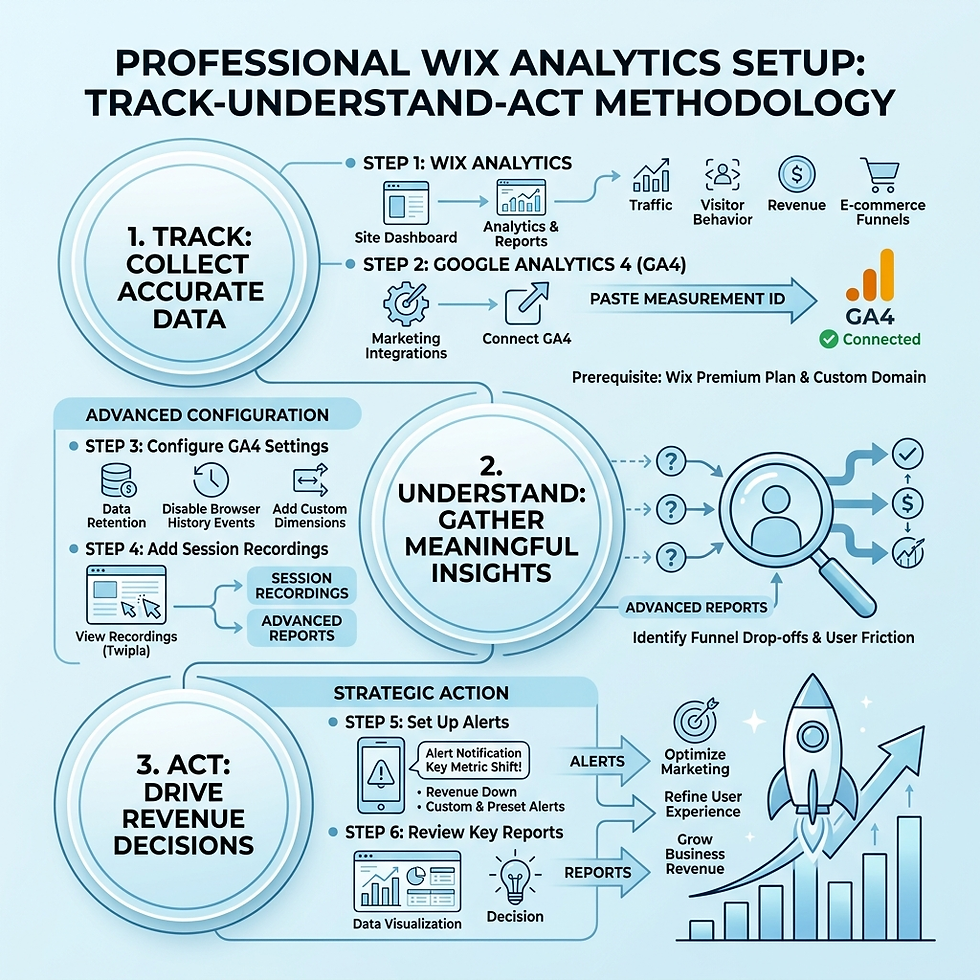
Core Features of a Professional Wix Analytics Setup
When we talk about a professional Wix analytics setup, we aren't just talking about a single tool. We are talking about an ecosystem. Wix Analytics is included with every published site, providing actionable insights on traffic, behavior, and revenue without any extra configuration. It’s designed to be user-friendly, meaning you don't need to be a "numbers person" to understand the basics.
However, to truly scale, you need to understand the differences between what Wix provides natively and what external tools like Google Analytics 4 (GA4) bring to the table.
Metric | Wix Analytics | Google Analytics 4 |
E-commerce Tracking | Automatic (Simple) | Advanced (Funnel Analysis) |
User Journey | High-level overviews | Granular path exploration |
Real-time Data | Dashboard highlights | Real-time (30-second window) |
Customization | Requires Business VIP for deep edits | Highly customizable (Free) |
Historical Data | Indefinite (Standard reports) | Up to 14 months (Explorations) |
To make the most of your data, you should familiarize yourself with the Wix Analytics Reports Glossary to understand exactly what "sessions," "unique visitors," and "bounce rates" mean in the Wix context.
Understanding Wix Analytics and Custom Reports
The beauty of Wix is that it tracks your busiest days, your most popular content, and your customer demographics automatically. But the real power lies in customization. While basic reports are free, if you want to duplicate, customize, or create your own reports from scratch, you'll typically need to upgrade to a Business VIP plan.
Customization allows us to filter sales reports by specific date ranges or add columns to traffic reports to see exactly how long people stay on a specific landing page. We recommend saving these as "Custom Views" so you can jump back into your most important data with a single click. If you feel overwhelmed by the technical side of data filtering, our team provides Wix Partner Services to help you build these dashboards for you.
Leveraging Session Recordings for UX Insights
One of the most powerful tools in a professional Wix analytics setup is Session Recordings (powered by Twipla). This feature lets you watch real videos of how visitors move their mouse, where they click, and when they get frustrated and leave.
Why use it? It’s the ultimate tool for identifying cart abandonment. If customers are dropping off at the shipping page, a recording might show that a button is broken or a form is too confusing.
Plans: Wix offers several tiers, from a Free plan (10 monthly recordings) to Pro Plus (10,000 monthly recordings).
Retention: Recorded sessions are saved for up to 36 months, allowing for long-term behavior analysis.
You can find more details on Wix Analytics: Adding and Setting Up Session Recordings to start seeing your site through your visitors' eyes.
Step-by-Step: Integrating Google Analytics 4 with Wix
While Wix Analytics is great for a quick health check, GA4 is where we go for deep-dive marketing attribution. To use GA4, you must have a Wix Premium plan and a connected custom domain.

The first step is to Set up Google Analytics 4 account and generate your "G-" Measurement ID. This ID acts as the bridge between Google’s servers and your Wix site.
Professional Wix Analytics Setup: Connecting GA4
Once you have your Measurement ID, follow these steps to connect it:
Log in to your Wix Dashboard and go to Marketing & SEO > Marketing Integrations.
Find Google Analytics and click Connect.
Click Connect Google Analytics at the top right.
Paste your GA4 Measurement ID (it starts with G-).
Check the box for IP Anonymization if you need to comply with GDPR.
Save.
Data usually takes 24-48 hours to fully populate in standard reports, but you can verify the connection almost immediately using the Real-time report in GA4. For a deeper technical walkthrough, check out this guide on How to Install Google Analytics 4 on Wix.
Best Practices for GA4 Configuration on Wix
A common mistake we see is "setting and forgetting" the GA4 connection. To ensure your professional Wix analytics setup provides accurate data, you must tweak a few settings:
Data Retention: By default, GA4 only keeps certain data for 2 months. Go to your GA4 Admin settings and change this to 14 months.
Disable Browser History Events: Wix is a "Single Page Application" (SPA) in many ways. If you don't disable "Page changes based on browser history" in GA4’s Enhanced Measurement settings, you might end up with duplicate pageview counts.
Internal Traffic Filters: Don't let your own visits skew the data. Add your office or home IP address to the internal traffic filters.
Custom Dimensions: Wix sends specific parameters like event_category and event_label. You need to manually register these in GA4 under "Custom Definitions" for them to show up in your reports.
Advanced Monitoring: Custom Alerts and E-commerce Tracking
You shouldn't have to stare at a dashboard all day to know if your site is performing. That’s where alerts come in.
Creating and Managing Custom Analytics Alerts
Wix Analytics Alerts notify you when there is a significant change in your data. There are two main types:
Preset Alerts: These are pre-installed and trigger automatically when the Wix algorithm detects a spike or drop in traffic or sales.
Custom Alerts: You define the threshold. For example, "Email me if total sales drop by 20% compared to last week."
When you create these, Wix directs you to Wix Automations. We recommend creating specific alerts for your main KPIs. If you need help deciding which metrics to watch, we offer a service to Set up Google Analytics alerts to monitor your main KPIs.
Professional Wix Analytics Setup for E-commerce
If you run a Wix Store, you’re in luck. The native integration between Wix and GA4 automatically tracks key e-commerce events without any extra coding. This includes:
view_item (When a product is viewed)
add_to_cart (When an item is added)
begin_checkout (When the checkout process starts)
purchase (When the sale is finalized)
This allows us to build "Conversion Funnels" to see exactly where people drop off. Are they adding to the cart but never starting the checkout? That might indicate high shipping costs or a lack of trust.
Data Privacy, Troubleshooting, and Compliance
In today's digital landscape, tracking must be balanced with privacy. This is especially true if you have visitors from Europe (GDPR) or California (CCPA).
Managing Privacy Modes for Session Recordings
Wix’s Session Recordings tool offers four privacy modes:
Light Privacy: Minimal anonymity; shows all visitor info.
Medium Privacy: Hides visitor IP addresses.
GDPR Privacy: High anonymity; reduced data insights.
Maximum Privacy: Highest anonymity; disables most site data insights.
For most businesses in the US, Medium Privacy is a good balance. However, if you are strictly following Data protection regulations and Wix users, you should also enable a cookie banner. Wix will only track data after the visitor grants consent, which is why you might see lower numbers in GA4 than in your Wix Sales reports.
Troubleshooting Common Analytics Issues
If your data looks "off," don't panic. Here are the most common fixes:
No data after 48 hours: Check for typos in your Measurement ID. Also, ensure your site is published and not in "Draft" mode.
Real-time shows zero users: Use the Google Analytics Debugger Chrome extension. This forces your browser into "DebugView" so you can see events as they happen.
Cookie Banner Blocking: If your numbers dropped significantly after adding a banner, it’s working! It just means people are opting out of tracking.
Duplicate Pageviews: Ensure you haven't installed the Google tag twice (e.g., once via Marketing Integrations and once via Custom Code).
For more help, refer to the official guide on Troubleshooting Google Analytics.
Frequently Asked Questions about Wix Analytics
How long does it take for data to appear in Wix and Google Analytics?
Wix Analytics updates fairly quickly, often within a few hours. Google Analytics 4 takes 24-48 hours for standard reports to populate, though the "Real-time" report shows activity within 30 seconds of a visitor arriving.
Can I use multiple analytics tools together on a Wix site?
Yes! In fact, we recommend it. Using Wix Analytics for daily business health and GA4 for marketing attribution gives you the best of both worlds. You can also add tools like Facebook Pixel or Hotjar via the Marketing Integrations tab.
Is Wix Analytics free for all users?
Every published Wix site includes Wix Analytics for free. However, advanced features like custom report building require a Business VIP plan, and high-volume session recordings require a paid Twipla subscription.
Conclusion
A professional Wix analytics setup is the difference between running a business and running a hobby. By combining the ease of Wix Analytics with the depth of Google Analytics 4 and the visual insights of Session Recordings, you can make data-driven decisions that actually move the needle.
At S9 Consulting, we specialize in helping businesses in Boston, MA, and Boston, MA, USA, automate their processes and integrate their systems for maximum efficiency. Whether you're struggling with cart abandonment or just want to know where your best customers are coming from, we can help.
Stop flying blind and get a professional Wix analytics setup today. Let's turn your data into your greatest competitive advantage.


