
The Seamless Way to Connect Shopify to HubSpot for Better Tracking
- 16 hours ago
- 13 min read
Why Businesses Connect Shopify to HubSpot (And How to Do It Right)

The fastest way to connect Shopify to HubSpot is through the native integration built by HubSpot:
In HubSpot, click the Marketplace icon and search for "Shopify"
Click Install and enter your Shopify store URL
Log in with your Shopify credentials to authorize the connection
Navigate to Settings > Integrations > Connected Apps > Shopify > CRM syncs
Select the objects to sync: Contacts, Products, Orders, and Carts
Click Set up your sync and configure your field mappings
Once connected, records sync within 10 minutes of any change after the initial sync completes.
Your Shopify store knows everything about what customers buy. HubSpot knows everything about how you market to them. But if the two systems aren't talking to each other, you're flying blind.
Most small Shopify merchants patch the gap with manual CSV exports, copy-pasted order notes, or gut instinct. It works — until it doesn't. A 12-person DTC brand, for example, once took seven full days for new order data to reach their CRM. That's a week of stale contacts, missed automations, and abandoned cart emails firing too late to matter.
The problem isn't effort. It's the missing data bridge.
When Shopify and HubSpot are properly connected, every order, abandoned cart, and customer record flows automatically into your CRM. That means smarter segmentation, faster follow-up, and marketing that actually responds to what customers do — not what you guessed they might do. And with 70% of online shopping carts abandoned, automated recovery workflows alone can make the integration pay for itself quickly.
This guide walks you through the full setup — from installation and field mapping to advanced automation and troubleshooting — so you can stop losing revenue to disconnected systems.
I'm Carlos Cortez, senior consultant at S9 Consulting and co-founder of multiple e-commerce operations, including a distribution company I scaled to over $18 million in revenue by building integrated data and workflow systems from the ground up. My team helps growing brands connect Shopify to HubSpot in ways that actually hold up at scale — not just on day one. Let's get into it.

The Strategic Benefits of E-commerce CRM Integration
When you run an e-commerce brand, your storefront and your CRM cannot exist as separate islands. If marketing doesn't know what sales is doing, and if customer service is blind to recent order histories, your customer experience suffers. Integrating these systems turns raw transaction data into actionable marketing signals, enabling a highly coordinated customer journey.
At S9 Consulting, we look at integration through the lens of business value. By linking your storefront directly to your CRM, you establish a single source of truth. This unified database allows you to calculate true customer lifetime value (LTV), understand which marketing campaigns actually drive bottom-line revenue, and build sophisticated customer cohorts.
Instead of guessing which channels perform best, you gain clear marketing attribution. You can trace a customer's journey from their very first ad click through to their tenth purchase. With a robust data foundation, your marketing team can build dynamic segments that update in real time as customers interact with your store. Rather than blasting your entire list with generic promotions, you can tailor your messaging to specific behavioral triggers, ensuring your emails are always timely and relevant. To learn more about how we construct these data pathways, explore our Ecommerce Integration Services.
Why You Should Connect Shopify to HubSpot for E-commerce Growth
Connecting your storefront to your CRM is one of the most effective levers for accelerating revenue. Consider this: automated email campaigns generate up to 320% more revenue compared to non-automated, generic email blasts. When you connect Shopify to HubSpot, you unlock the ability to trigger these high-yield automations instantly based on real-time customer actions.
Furthermore, treating your CRM as a customer data platform (CDP) yields substantial compounding benefits. Industry data shows that companies utilizing a CDP achieve 2.9 times greater year-over-year revenue growth and a 9.1 times higher annual growth in customer satisfaction.
By unifying your data, you can build seamless post-purchase journeys, implement hyper-targeted win-back campaigns, and recover abandoned carts before the buyer's interest cools. This level of personalization is no longer a luxury; it is what modern shoppers expect. At S9 Consulting, we align technology with your broader business objectives to ensure your tech stack supports long-term growth. To see how we approach e-commerce architecture, read about The S9 E-commerce Approach.
How the Native HubSpot Data Sync Works
The native HubSpot Data Sync integration acts as an automated pipeline between the two systems. Once the initial sync is complete, HubSpot Shopify integration syncs records within 10 minutes of a change. This ensures your sales and marketing teams always work with fresh, accurate data.
The native integration supports a mix of bidirectional (two-way) and unidirectional (one-way) sync rules across five primary data objects:
Contacts: Syncs bidirectionally. If a customer updates their email address or phone number in Shopify, the change reflects in HubSpot, and vice versa.
Products: Syncs bidirectionally. This keeps your product catalog, pricing, and basic details aligned across both systems.
Companies: Syncs bidirectionally, but this feature is strictly limited to Shopify Plus subscriptions. It allows B2B merchants to sync corporate accounts seamlessly.
Orders: Syncs one-way from Shopify to HubSpot. Because orders are financial records of truth, they cannot be modified inside HubSpot; any updates must occur in Shopify.
Carts (Abandoned Checkouts): Syncs one-way from Shopify to HubSpot, updating in near real-time (usually within 1 to 3 minutes) to power timely cart recovery automations.
To understand the fine-grained settings of this data engine, you can review HubSpot's official documentation on how to Connect HubSpot and Shopify (Data Sync) .
Step-by-Step Guide: How to Connect Shopify to HubSpot
Before starting the installation, ensure you have the correct permissions. You must have Super Admin or App Marketplace permissions in your HubSpot account, and full administrative access to your Shopify store.
Standardizing your data prior to connection is highly recommended. Clean up your Shopify customer list by removing test accounts, correcting formatting errors, and merging known duplicates. This prevents dirty data from polluting your CRM from day one. If you are building a brand-new store or restructuring an existing one, our team can manage the entire process through our Shopify End to End Setup service.

Installing and Configuring the Integration
There are two ways to connect your accounts: via the HubSpot App Marketplace or the Shopify App Store. We recommend installing it from the HubSpot side for a smoother configuration process.
Log into your HubSpot portal. Click the Marketplace icon (the storefront graphic) in the top navigation bar and select App Marketplace.
Search for "Shopify" and select the official app built by HubSpot.
Click Install App. You will be prompted to enter your Shopify store's URL. Always use your primary .myshopify.com domain name rather than a custom redirect or vanity domain.
You will be redirected to your Shopify admin panel to authorize the connection. Click Install to grant the necessary data permissions.
Once redirected back to HubSpot, navigate to Settings > Integrations > Connected Apps and click on Shopify.
Go to the CRM Syncs tab. Here, you will see toggle switches for Contacts, Companies, Products, Orders, and Carts. Turn on the objects you wish to sync.
For each active object, click Set up your sync to review the default field mappings. If you want updates in HubSpot to write back to Shopify, ensure the sync direction is set to two-way. If you only want Shopify to update HubSpot, select one-way.
To prevent hitting contact limits on your HubSpot plan, we highly recommend checking the box that says "Only sync contacts with an email address."
For a deeper dive into managing your Shopify architecture and ensuring your storefront is optimized for these integrations, visit our dedicated Shopify service page.
Setting Up Your E-commerce Dashboard
Once your data is flowing, you need a clear way to visualize it. HubSpot makes this simple by offering a pre-built e-commerce dashboard template that pulls your Shopify transaction data into clean, visual reports.
To build your dashboard:
In HubSpot, navigate to Reporting & Data > Dashboards.
Click Create dashboard in the top right corner.
In the template library, search for and select the E-commerce template.
Name your dashboard and set the appropriate user access levels (e.g., private to you, shared with your team, or view-only for specific users).
Click Create dashboard.
This template automatically populates with essential reports, including total revenue generated, average order value (AOV), order frequency, and customer acquisition trends. You can customize these reports further to track monthly progress toward specific sales goals or analyze e-commerce funnel performance. For advanced advice on optimizing these metrics, check out our guide on E-commerce Funnel Optimization.
Choosing the Right Plan to Connect Shopify to HubSpot
The integration itself is free to install from the Shopify App Store, but the features and customization options available to you depend heavily on your HubSpot subscription tier.
Free Plan: Allows basic data sync and simple, single-stage email automations. This is suitable for brand-new stores with low transaction volumes.
Starter Plan (Starting around $15/month): Unlocks standard marketing automation, basic segmentation, and essential reporting.
Professional Plan (Starting around $1,450/month): Recommended for growing brands. Unlocks advanced workflows, custom reporting, multi-store setups, and deep attribution analytics.
Enterprise Plan (Starting around $4,700/month): Designed for large-scale operations requiring custom behavioral events, advanced predictive scoring, and complex multi-system orchestration.
Note on Custom Field Mappings: If you want to map custom Shopify fields to custom HubSpot properties, you must have at least a Data Hub Starter subscription (or a higher-tier HubSpot plan that includes advanced data sync capabilities). You can review the app's full listing on the HubSpot - Enhance store growth with seamless customer ... page to check the latest feature availability.
Native Sync vs. Third-Party Orchestration Platforms
While the native HubSpot-Shopify connector is an excellent starting point, it is not always the best fit for complex, high-volume, or highly customized e-commerce operations. As brands scale, they often run into the structural limitations of native sync.
This is where third-party automation and integration platform as a service (iPaaS) tools like MESA, Unific, Make, or Celigo come into play. Rather than merely synchronizing data back and forth, these platforms allow you to orchestrate complex, multi-step workflows across your entire tech stack.
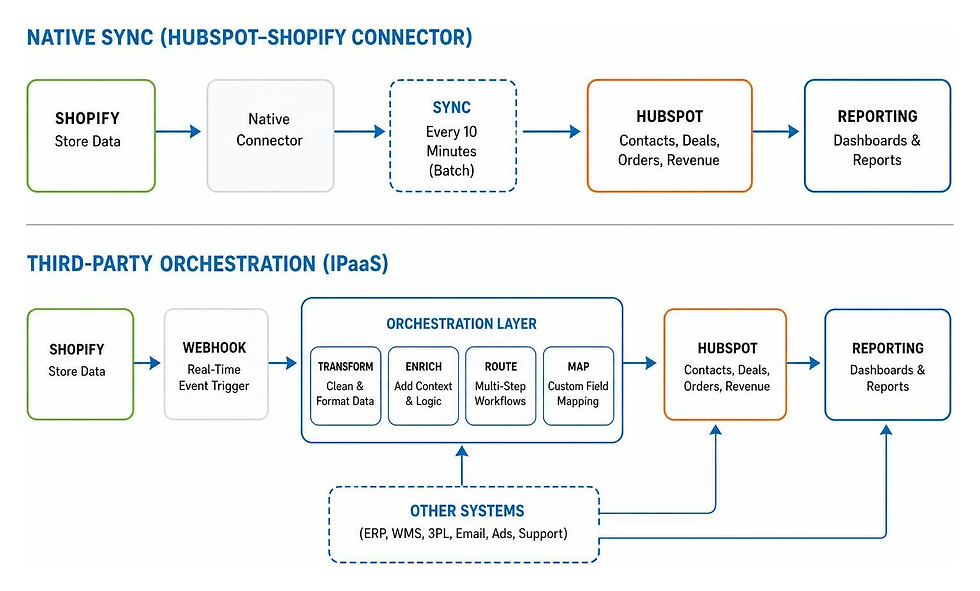
Feature / Capability | Native HubSpot Integration | Third-Party Platforms (MESA, Make, Celigo) |
Setup Complexity | Extremely Low (Plug-and-play, ~10 mins) | Moderate to High (Requires workflow design) |
Sync Speed | Every 10 minutes (Batch API) | Near Real-Time (Immediate Webhooks) |
Custom Field Mapping | Restricted (Requires Data Hub Starter+) | Completely Flexible (No plan restrictions) |
Product Variants | No (Only parent products sync) | Yes (Can map individual SKUs and variants) |
Order Mapping | Forces sync to "Orders" object | Can map orders to Deals, Tickets, or Custom Objects |
Multi-App Orchestration | Limited to HubSpot & Shopify | Can chain tools (e.g., Shopify + HubSpot + ERP + 3PL) |
Cost | Free (Excluding HubSpot plan requirements) | Subscription-based (Starts at $10 to $150+/month) |
If your brand requires complex order handling, custom metafield sync, or integration with an ERP or a 3PL alongside HubSpot, a third-party tool is often the superior choice. For a detailed breakdown of how these advanced automation tools can streamline your operations, read about how to Connect Shopify to HubSpot for Smarter Growth .
Understanding Sync Rules, Deduplication, and Deletions
To maintain clean data, you must understand how the integration handles matching, deduplicating, and deleting records across systems.
Contacts: HubSpot uses the customer's email address as the unique identifier. If a contact with that email already exists in HubSpot, the integration updates the existing record rather than creating a duplicate. Capitalization and spacing are stripped during matching to ensure accuracy. If a contact is deleted in HubSpot, the customer record is not deleted in Shopify.
Companies: Matching is done via a normalized organization name. As a reminder, company sync is only available for Shopify Plus users.
Products: Products are matched using their normalized title or handle. If a product is deleted in Shopify, it remains in HubSpot but is marked as inactive or archived.
Orders and Carts: These are mapped one-way using Shopify's unique order and checkout IDs. They cannot be edited or deleted from the HubSpot side.
For a comprehensive overview of how these deletion and deduplication rules behave under various scenarios, consult the Connect HubSpot and Shopify (Data Sync) support guide.
Limitations of the Native Connector
While the native connector is highly stable, it has several notable limitations that frustrate scaling merchants:
No Product Variant Sync: The native app syncs parent products, but it does not sync individual product variants (like size or color) as separate items. This makes detailed inventory-level reporting or variant-specific marketing difficult.
No Metafield Support: Shopify metafields (used to store custom product or order details) are not supported by the native Data Sync app.
The "Orders vs. Deals" Change: In December 2023, HubSpot rolled out a major update. New installations of the native integration now sync Shopify transactions directly to a new, dedicated Orders object rather than mapping them to the traditional Deals object.
While this keeps the CRM cleaner, it broke many legacy workflows. The new Orders object lacks some of the advanced features native to Deals, such as visual pipeline drag-and-drop interfaces, sales quote generation, and certain attribution reports. If you need to add synced products directly to HubSpot sales quotes or require traditional Deal-based workflows, you may need a custom API solution or a third-party middleware tool. You can read more about how other merchants navigate this challenge on the Solved: HubSpot Community - Re: Shopify HubSpot integration sync data and add products into HubSpot sales quote - HubSpot Community forum thread.
Advanced E-commerce Use Cases and Troubleshooting
As your business grows, your data requirements become more complex. Standard sync settings are rarely sufficient for handling advanced operational scenarios.
Consider B2B and wholesale operations: if you run a hybrid store serving both retail consumers and wholesale accounts, you cannot treat their data the same way. Wholesale orders often require custom payment terms, unique pricing tiers, and distinct sales pipelines.
Similarly, subscription-based businesses must track recurring billing events, renewals, pauses, and churn signals. If these events aren't synced to your CRM in real time, you run the risk of sending promotional emails to customers whose subscriptions just failed.
Multi-store setups also present unique challenges. If you operate separate Shopify storefronts for different regions (e.g., US, UK, and CA), you must configure your integration to route orders to the correct regional pipelines while keeping your global customer database clean. Managing these complex data flows requires deep expertise in systems integration. To discover how we build custom integration layers for multichannel brands, explore our Ecommerce Marketplace Integration solutions.
High-Impact Marketing Automation Workflows
Once your data is flowing cleanly between Shopify and HubSpot, you can build automated workflows that drive measurable revenue. Here are four high-impact campaigns every store should implement:
Abandoned Checkout Recovery: Triggered when a customer adds items to their cart but fails to complete the purchase. Because cart data syncs to HubSpot in near real-time (1 to 3 minutes), you can trigger a highly personalized, multi-stage recovery sequence. Send the first email within 2 hours, a gentle reminder at 24 hours, and a final, limited-time discount offer at 72 hours.
First-Purchase Welcome Series: Triggered immediately when a new contact's order status changes to "Paid" for the first time. Use this sequence to thank the customer, introduce your brand story, set delivery expectations, and suggest complementary products.
Customer Win-Back Campaigns: Target customers who haven't made a purchase in 60, 90, or 180 days. Use dynamic segmentation to customize the offer based on their past purchase history (e.g., offering a discount on their most frequently ordered category).
VIP Customer Nurture: Build a workflow that automatically tags and rewards high-value customers. For example, if a contact's lifetime spend exceeds $500 and they have placed more than three orders, tag them as a "VIP." This tag can trigger exclusive offers, early access to new product launches, or personalized outreach from your customer service team.
Deploying these automations successfully requires ongoing campaign management and list hygiene. To learn how we support brands with continuous optimization, check out our E-commerce Management services.
Troubleshooting Common Sync Errors
Even the best integrations occasionally run into errors. Here is how to identify and fix the most common issues:
Duplicate Contacts: This usually happens when a customer checks out using different email addresses, or when a manual CSV import bypasses matching rules. To fix this, use HubSpot's built-in deduplication tool to merge records. Always set the customer's canonical email address as the primary record.
Missing Fields or Broken Attribution: If critical customer or order data is missing, check your field mappings. Ensure you are using the correct internal names for custom properties. If tracking pixels or UTM parameters are missing, verify that your HubSpot tracking code is properly installed on your Shopify theme.
April 2025 Cart Sync Changes: On April 1, 2025, Shopify updated its API, removing several legacy cart sync fields (including cart tags, tokens, landing sites, and referring sites). If your abandoned cart workflows stopped working or are missing data, you must manually reconfigure your custom field mappings to align with the updated API schema.
If you find that the native connector is failing to handle your custom data structures or is dropping critical customer updates, building a custom integration using Make is a highly reliable alternative. For a step-by-step technical guide on building a custom customer sync scenario, read the tutorial on How to Sync Shopify Customers to HubSpot with Make (2026) — Integration Atlas .
Frequently Asked Questions about Shopify and HubSpot
To help you get the most out of your setup, we have compiled answers to the most common questions merchants ask when connecting these platforms. For a deeper look at the technical mechanics under the hood, you can also review the Shopify HubSpot Integration: How Data Sync & Automation Work guide.
Can I connect multiple Shopify stores to a single HubSpot account?
Yes, you can connect multiple Shopify stores to a single HubSpot portal. This is highly useful for brands operating international storefronts or managing multiple sister brands.
To connect an additional store, go to Settings > Integrations > Connected Apps, select Shopify, and click Manage accounts to add a new connection. To keep your data organized, we recommend setting up distinct pipelines and custom properties for each store, allowing you to segment and filter your reports by storefront.
Why are my Shopify orders syncing as Orders instead of Deals?
This is due to a major architectural update HubSpot rolled out in December 2023. For all new integration installs, Shopify transactions are automatically routed to a dedicated Orders object rather than the traditional Deals object.
This change was designed to keep sales pipelines clean, but it means you cannot use Deal-specific features (like visual pipelines or sales quotes) for Shopify orders natively. If you must use Deals, you will need to build custom HubSpot workflows that trigger upon the creation of an "Order" and automatically copy that data over to a new "Deal" record, or use a third-party integration platform like Make or MESA.
Does the native integration support Shopify product variants?
No. The native HubSpot-Shopify integration only syncs parent products. It does not sync individual product variants (such as specific sizes, colors, or materials) as separate line items.
If your marketing or sales workflows rely heavily on variant-level data (for example, triggering an email when a specific shoe size is back in stock), the native connector will fall short. To achieve variant-level syncing, you will need to utilize a custom API integration or a third-party middleware platform.
Conclusion
Connecting Shopify to HubSpot is one of the most impactful steps you can take to eliminate data silos, automate your marketing, and scale your e-commerce operations. Whether you utilize the plug-and-play native connector for simple tracking or deploy a highly customized third-party orchestration layer for complex workflows, the goal remains the same: building a reliable, unified database that drives smarter business decisions.
At S9 Consulting, we specialize in digital transformation, systems integration, and process automation. Operating out of our offices in Boston, MA and Jacksonville, FL, we build long-term partnerships with growing brands to streamline their technology, eliminate manual admin work, and unlock hidden revenue.
If you are ready to build a bulletproof data connection between your storefront and your CRM, we are here to help. Contact us today to discuss your integration needs, or explore our specialized Shopify development and consulting services to get started.